EN

Language

EN

Language

Understand Scenes, Cuts, assets, and tasks

Documentation navigation
On this page

Tacu uses a small set of working units so that story decisions, generated media, and timeline edits stay connected. A Scene holds a larger beat of the story. A Cut turns part of that Scene into a specific production and editing unit. Assets carry reusable project context, and tasks hold the work performed around a Cut.

Understanding these units makes it easier to answer two practical questions: “Where should I change this?” and “What else should I review after the change?”

Project vocabulary
UnitWhat it containsUse it when
ProjectThe brief, Scenario, production assets, editor work, timeline, and exportsYou need the complete context for one video
ScenarioThe planned story, including Scene order, Cut descriptions, dialogue, and linked production contextYou are checking whether the video plan supports the brief
SceneA larger story beat with related action, place, or timeSeveral Cuts belong to the same part of the story
CutA focused production and editing unit inside a SceneYou need to generate, review, or replace a specific part of the video
AssetReusable character, appearance or outfit, location, and object contextThe same visual fact needs to inform more than one Cut
TaskScenario, image, video, voice or audio, music, or text work associated with the editYou need to find the media or operation for a Cut

How the units connect

In the lamp demo, Scene 1 takes place in a design studio and Scene 2 moves to a living space. Each Scene contains three Cuts. One Cut introduces the designer; another isolates the lamp's form; another shows the light changing the room. The protagonist, outfit, lamp, studio, and living-space assets give those Cuts a shared production context.

The Cut is where a broad story decision becomes something you can review. “The room becomes warmer” is a Scene-level change. A Cut makes it observable: what is in frame, what action occurs, and what the result must communicate. Image, video, and other task results can then be evaluated against that Cut.

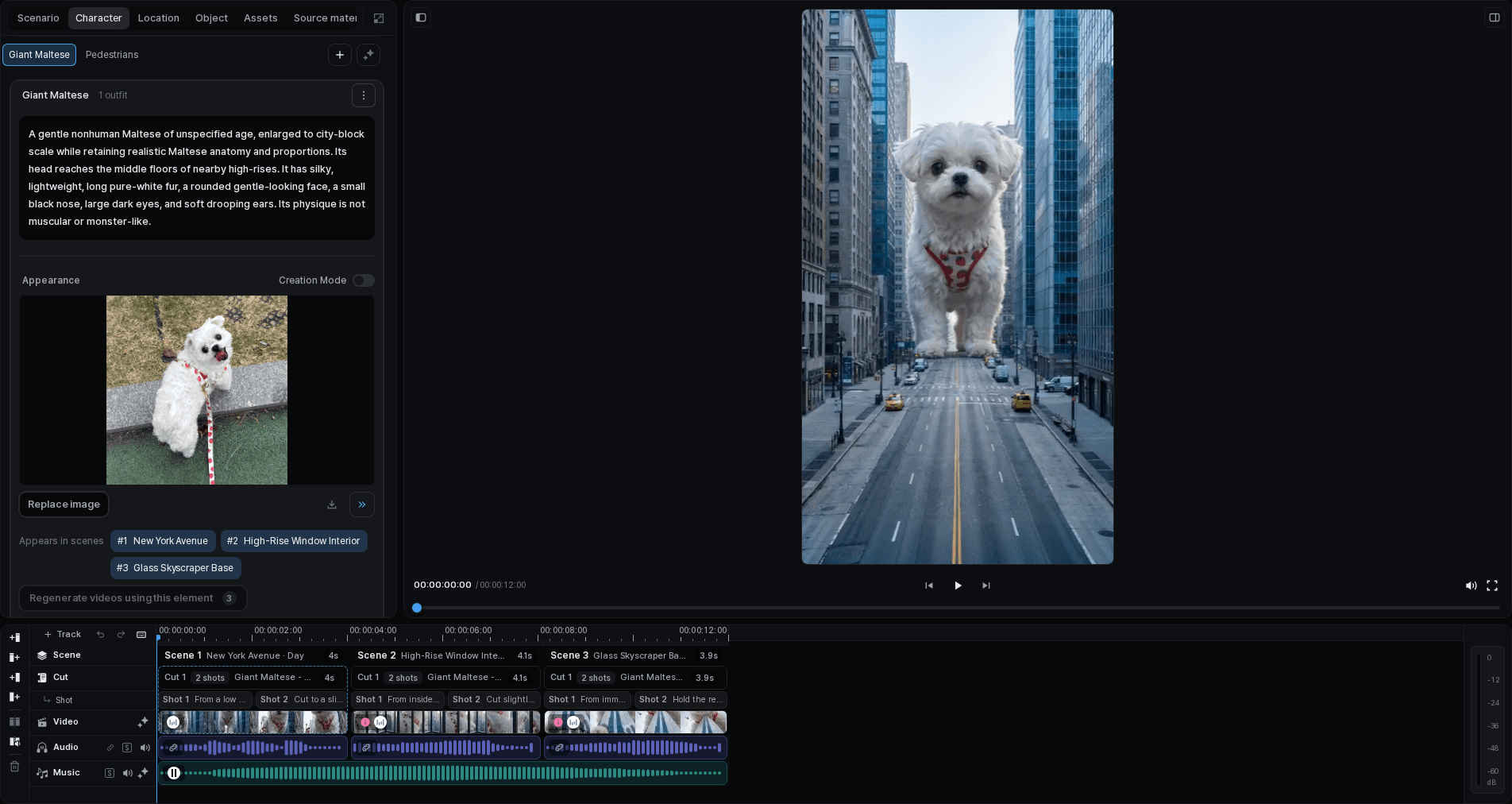
Expanded Tacu timeline with multiple Scenes, Cuts, generated media, and audio tracks
The timeline keeps each Cut and its media aligned inside the larger sequence.

A useful editing order

When a result does not work, diagnose it from the top down:

  1. Does the Scenario still match the project brief?
  2. Is the Scene clear about this part of the story?
  3. Does the Cut describe one understandable visual action or purpose?
  4. Are the right project assets connected?
  5. Does the selected task result satisfy the Cut?
  6. Does it still work when placed in the timeline?

This order prevents repeated generation from hiding an unresolved planning problem.

Tacu timeline grid with Scene and Cut structure plus image, video, voice, and audio rows
Read picture, sound, and text as one sequence before making a focused edit.