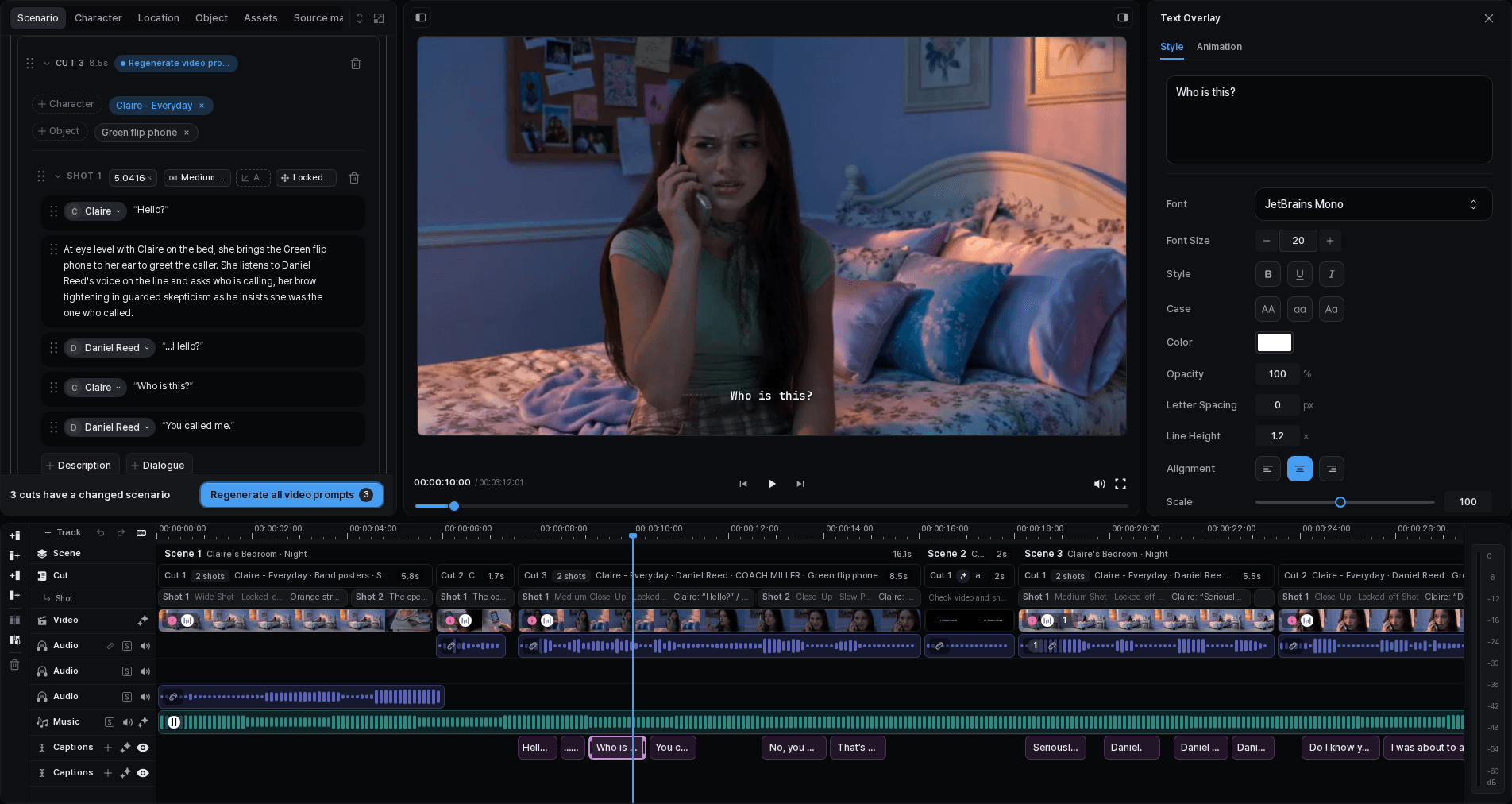
Check the voice track
Review any narration already placed on the voice track. Check the narrator's voice and the text before generating or regenerating narration.
When changing the narrator, use the available regeneration action for existing narration and listen to the new result. Choosing a voice is not the same as creating a separate voice for every character.
Arrange the sound you need
Add your audio from the available asset selection or editor library. Place it on the intended track, then adjust its timing and volume while listening to the picture.
A video's original sound, narration, and music can play together. Mute or adjust the part you do not want instead of assuming one replaces another. After trimming or copying a cut, listen at both boundaries.
Align and review subtitles
Check the words
Correct the subtitle text before spending time on timing and appearance.
Match the speech
Adjust subtitle positions and lengths, or use AI alignment when available. Review its estimate before confirming a paid operation.
Check the frame
Review placement, line breaks, and readability in the video preview, not just in the text field.
Watch the export
Play the completed file to check the final timing, font, and placement.