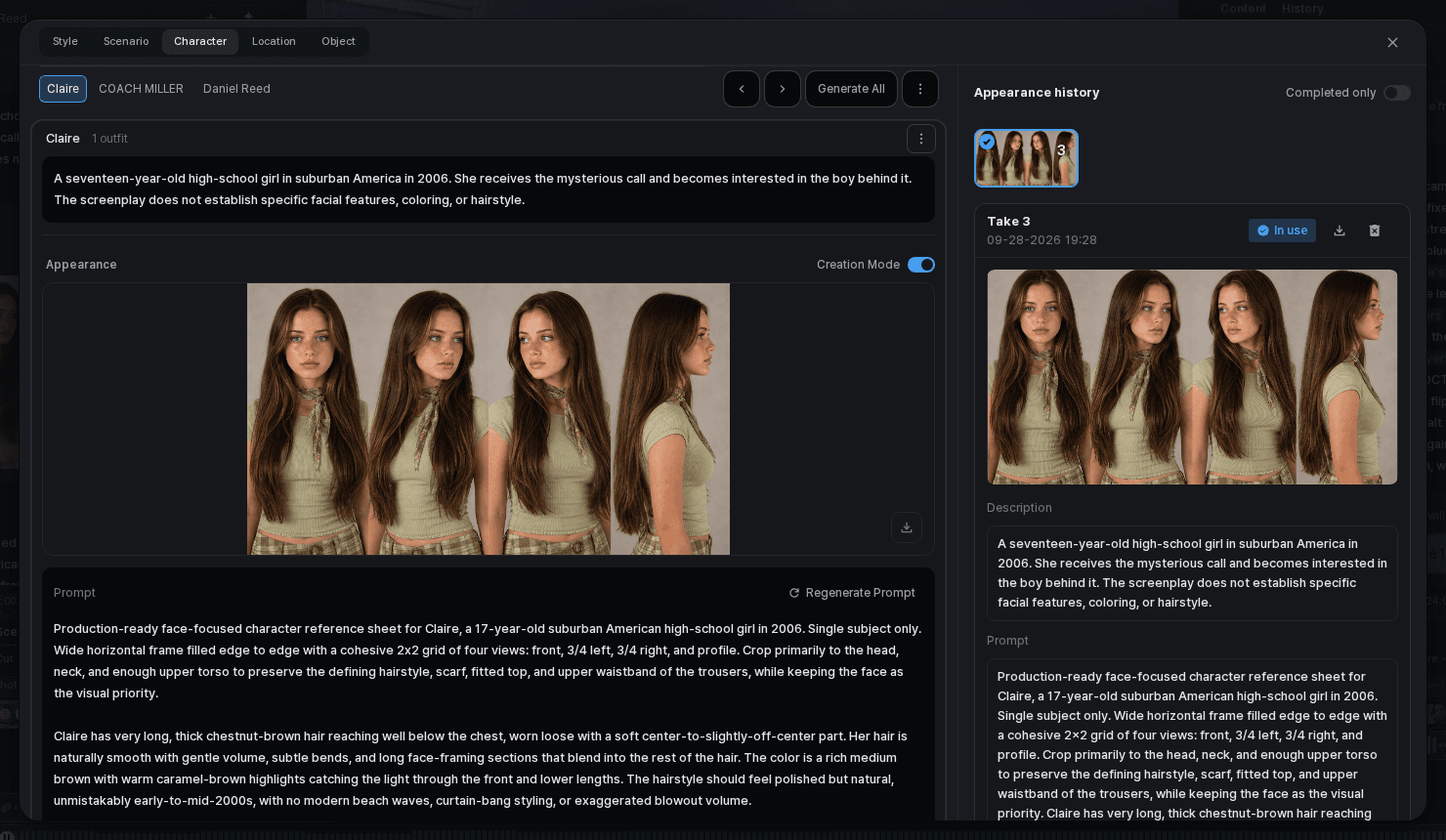
Generate an image for a clear Cut, not for an isolated prompt. Start from what the Cut must communicate, confirm that the relevant character, location, and object context is available, then compare the results against the same criteria. The goal is to choose a useful production image—not to keep generating until an option merely looks impressive on its own.
Before you generate
Check three things:
- Cut purpose: write one sentence describing what the viewer must understand from this image.
- Project context: confirm the intended character or outfit, location, and important object.
- Prompt focus: describe the subject, action, composition, light, and mood that matter for this Cut. Remove adjectives that do not change an observable decision.
For the lamp close-up, the purpose might be: “Show the lamp's curved form and the first warm light, without introducing a second product or changing the studio location.”

Generate and choose a result
Open the image task
Choose the Cut you want to work on and open its image task.
Check the prompt
Read the current prompt and correct any conflict with the Cut description or selected project context.
Review the references
Remove anything irrelevant and add an appropriate project image when the current context is incomplete.
Generate image options
Choose from the generation controls currently available in the product, then generate.
Compare the history
Open the result history and compare the candidates at a useful size. Look at composition, character and outfit, location, object shape, unwanted text, and details that could become more obvious once the image moves.
Select a working result
Choose the result that best supports the Cut with **Select**. The selected state records the current working choice; it does not erase the need to check the image in the sequence.

| What you find | Next action |
|---|---|
| A previous result already fits the Cut | Select that result from history |
| The composition works, but one bounded area is wrong | Use an image editing control for a focused correction |
| The subject, location, or overall composition is wrong | Revise the prompt or project context and generate another version |
| The image looks good alone but breaks continuity in sequence | Return to the Cut and shared assets before generating again |
Refine without losing the decision trail
Use the image editing surface when the overall result works but a specific area needs attention. The available controls can support actions such as cropping, drawing a target area, erasing a region, or describing an AI-assisted change. Save the edit as a new result, then compare it with the previous version and select it only if it improves the Cut.