Choose an editing package, not only a video file
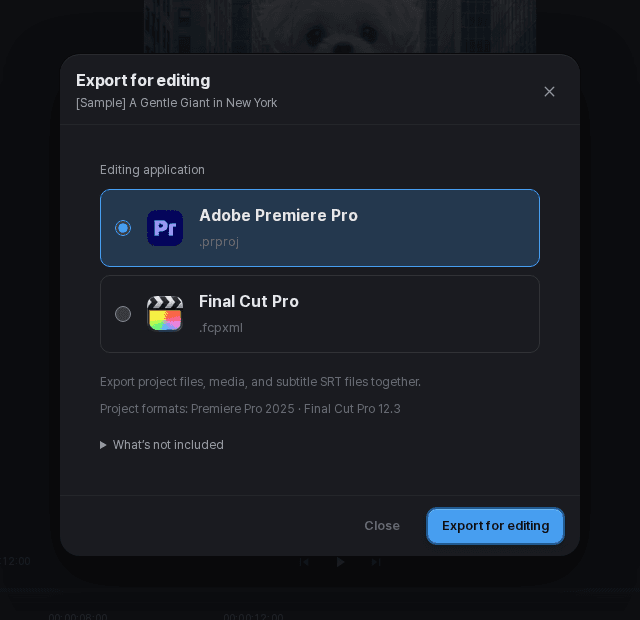
Use editing export when you want to keep working on the sequence in Premiere Pro or Final Cut Pro. Tacu offers Premiere project and Final Cut XML packages for the supported app versions shown in the export panel.
Finish selecting the takes and save the edit first. Keep a normal video export of the same version as a visual and audio reference.
Open and inspect the package
Create a new editing export
Select the target app and wait for this export to finish. Previous exports may describe an older edit.
Keep the files together
Download and extract the package. Follow its included instructions when opening the project or importing the XML.
Check media and timing
Verify that media is available, clips are in order, trims are correct, and the expected sound plays.
Review text and effects
Check titles, subtitles, transitions, and any listed omissions against the video export of the same version.
Expect app-specific differences
An editing package is not a promise that every effect will look identical in another app. Read the package's notes and any unsupported-item report, then make the necessary adjustments in the destination editor.
If you change the project in Tacu afterward, export a new package. Do not compare an earlier editing package with a later video and assume they represent the same timeline.